Archive post
Clive updates - vote for witnesses using Clive
During the last weeks, we were focused on two topics: governance operation and CLI (Command Line Interface) development
During the last weeks, we were focused on two topics: governance operation and CLI (Command Line Interface) development.
## Governance operation
The governance operations are: voting for witnesses, voting for proposals, or setting a proxy.
In this release, we implemented two of them: voting for witnesses and setting a proxy, the voting for proposals will be available soon.
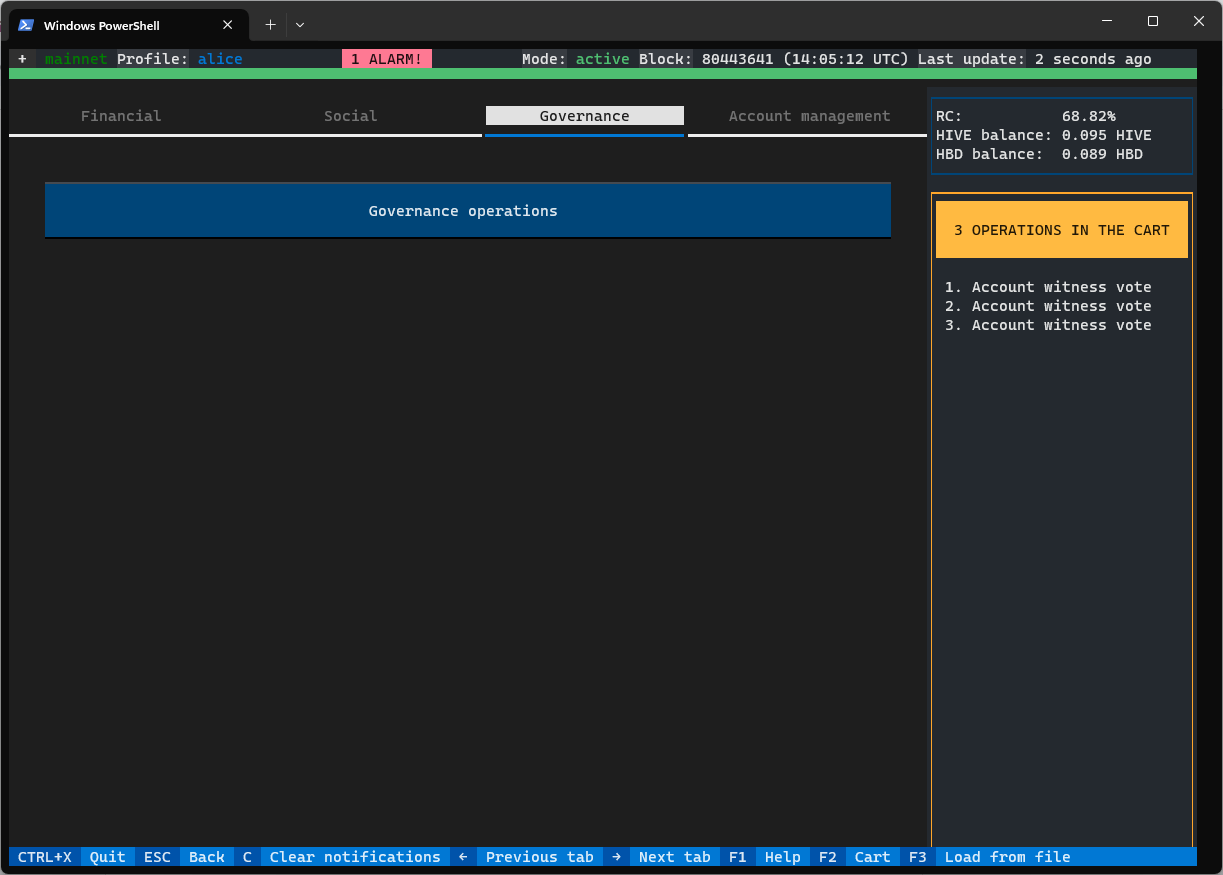
The Governance operations are divided into three tabs: Proxy, Witnesses, and Proposals
### Voting for witnesses
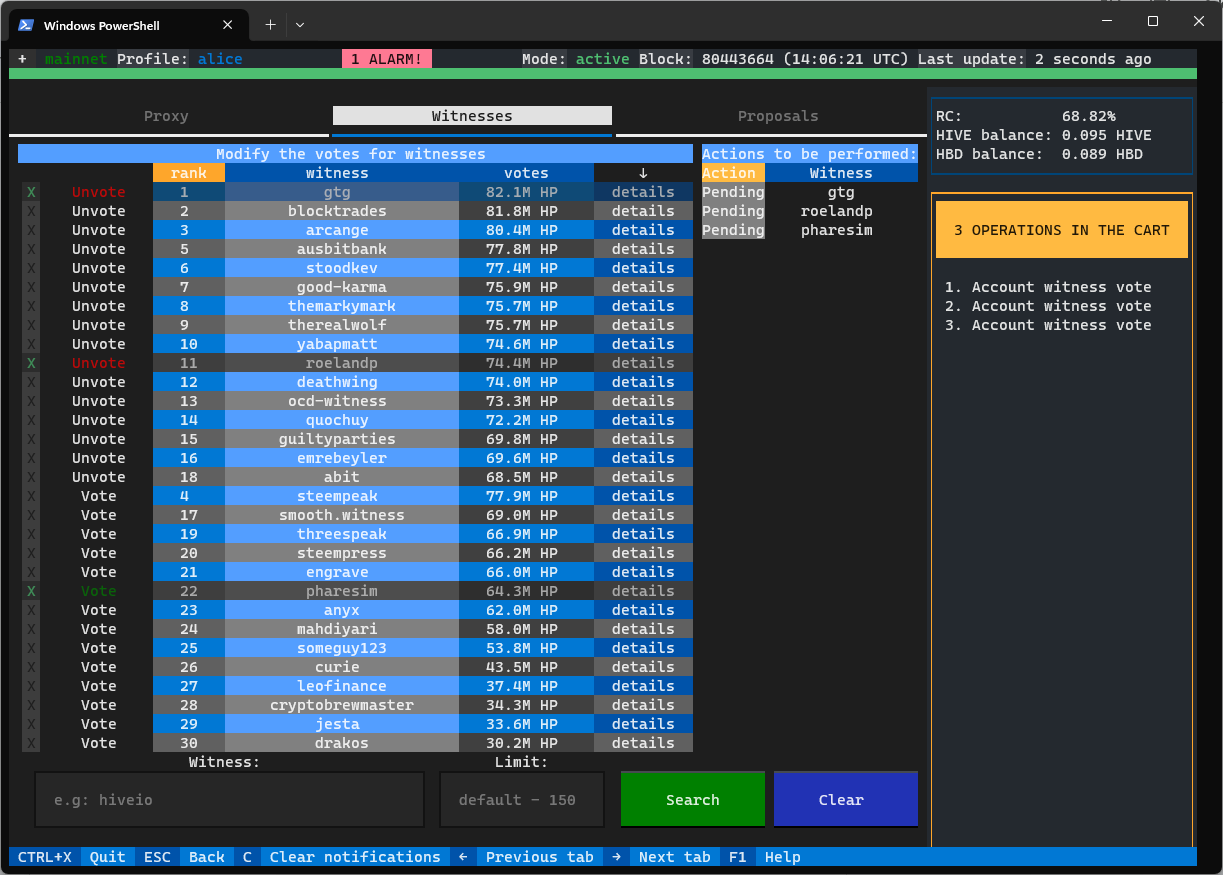
The witness view is divided into three parts:
- On the left side, there is a list of witnesses sorted by their HP - you can see your votes, and you can change them by clicking on the checkbox (`[X]`). You can go to the previous/next page of the list using your mouse by clicking the arrows placed in the header or via your keyboard and PgUp/PgDn buttons.
- On the right side, there is a list of Actions to be performed - here you can see the list of vote operations that you have added to the cart but have not been broadcast yet.
- On the bottom, a section allows you to search for a witness based on his name.
The vote for witness operation works the same as any other operation in Clive, so you may:
- Fast broadcast
- Add to cart
- Finalize transaction
### Setting a proxy
Using the Proxy tab you can set, change, or remove a proxy. If the proxy is set for your working account, you cannot vote for witnesses or for proposals.
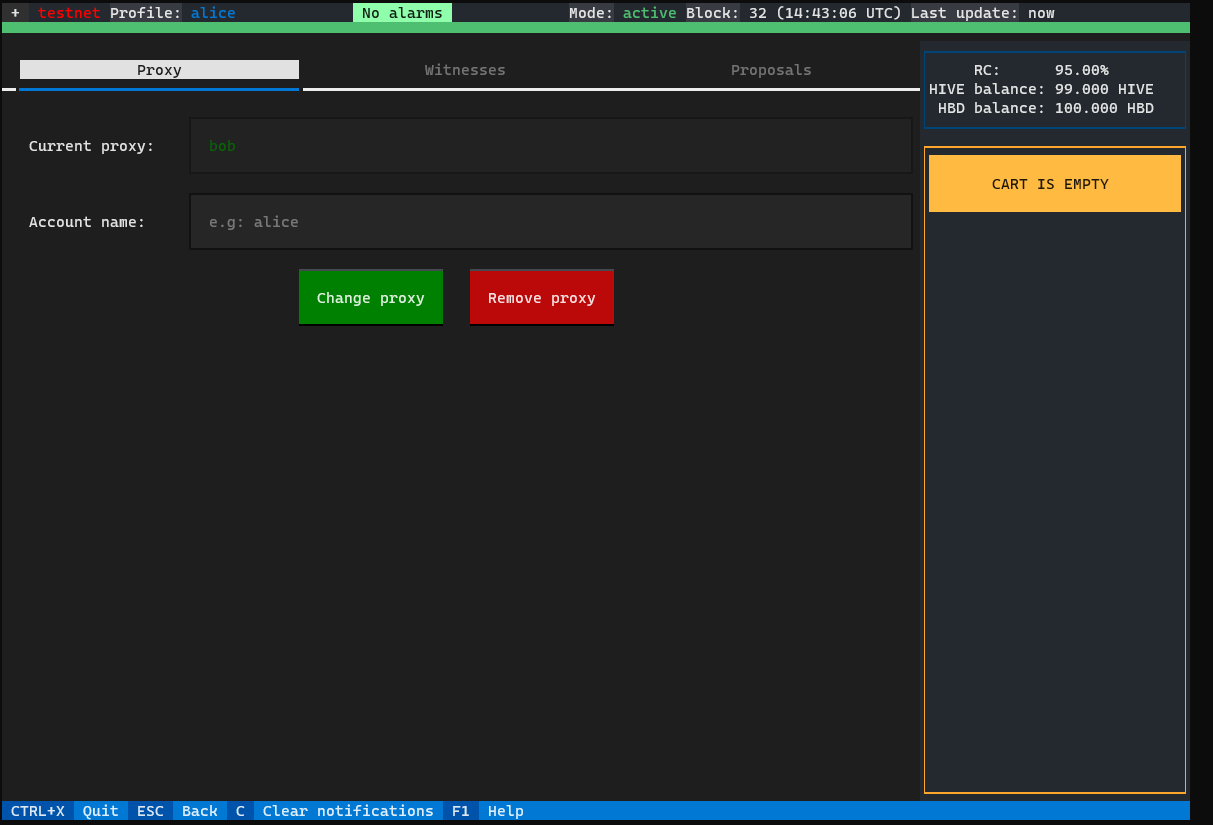
The proxy operation works the same as any other operation in Clive, so you may:
- Fast broadcast
- Add to cart
- Finalize transaction
## CLI (Command Line Interface) development.
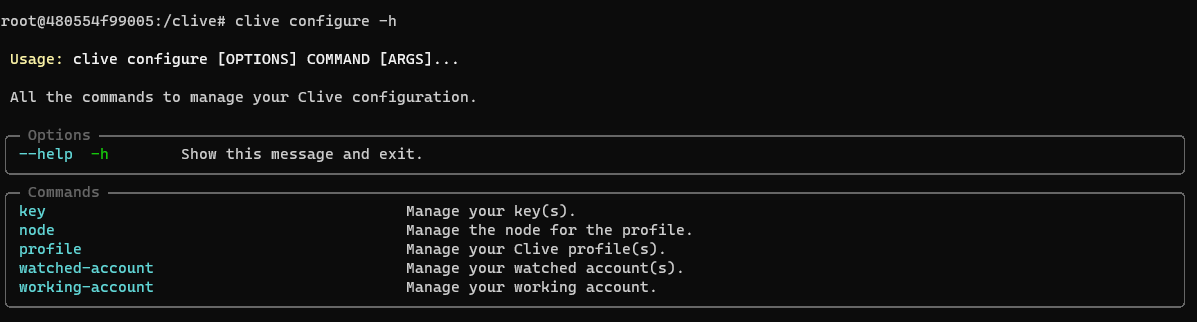
We decided to reorganize the command structure to make them easier to use. The commands are divided into three groups:
- Configuration - `clive configure` - used to manage things like: keys, nodes, profiles, working and watched accounts
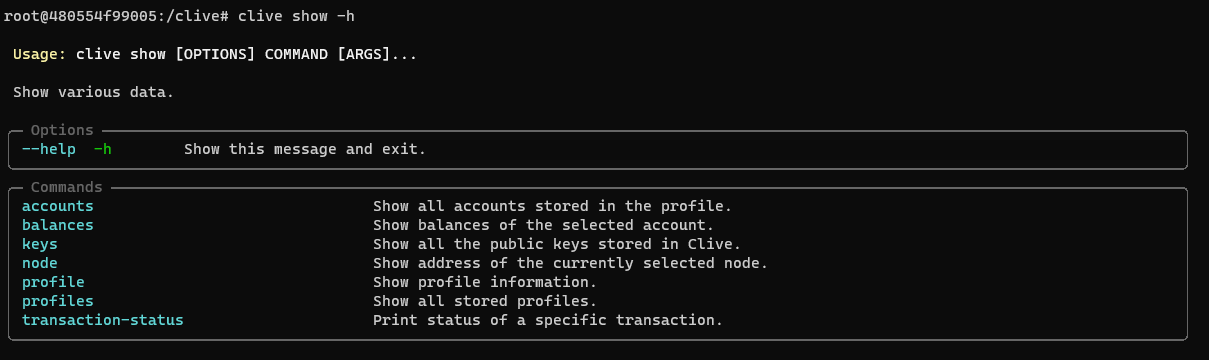
- List - `clive show` - lists accounts, balances, keys, node, profile(s), and transaction-status
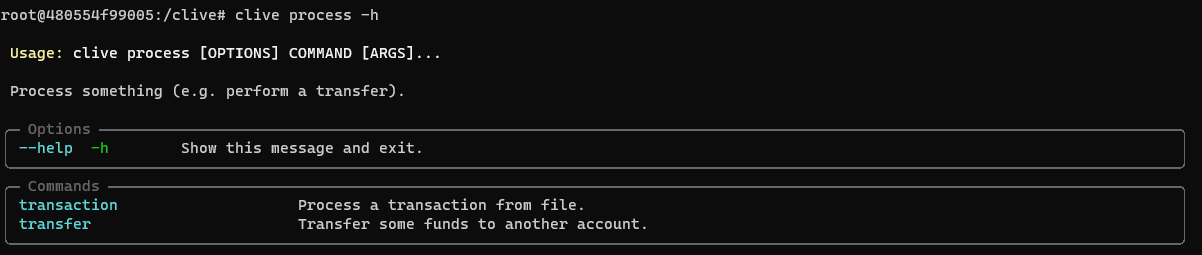
- Actions - `clive process` - performs an operation (now only transfer but the next operations will be coming soon) or transaction.
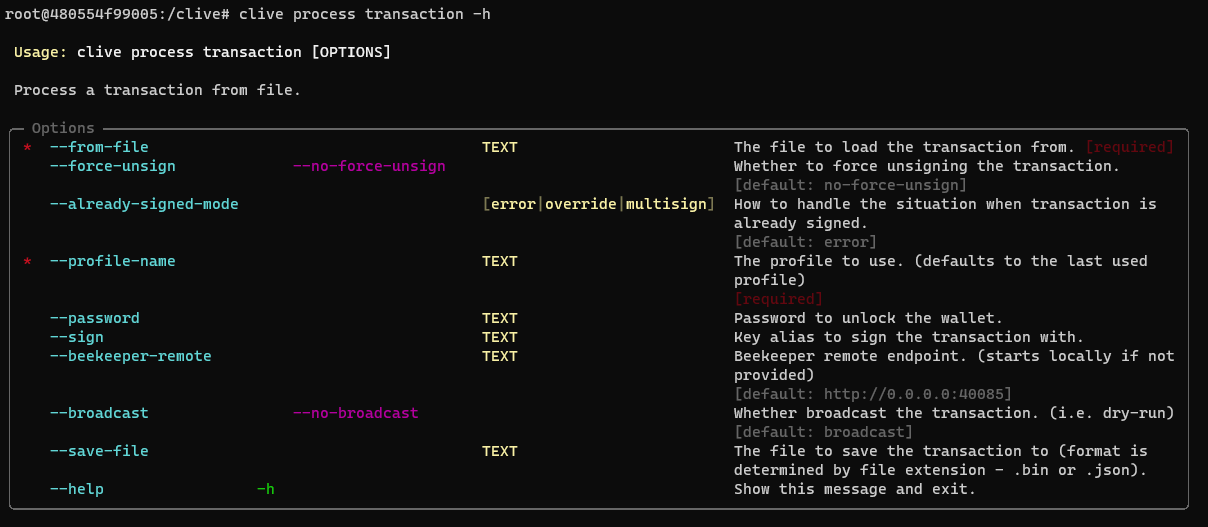
The command `clive process transaction` is a special command among the other commands that allows the creation of an operation. It can load a signed or unsigned transaction from file, sign, list, save to file, or broadcast a transaction.
The updated command schema is here:
[The updated command schema](https://gitlab.syncad.com/hive/clive/-/blob/master/clive/__private/cli/commands_structure.md)
[The complete list of corrected issues](https://gitlab.syncad.com/hive/clive/-/merge_requests/233)
More info about running Clive can be found here: [Clive - alpha release](/@thebeedevs/clive-alpha-release). Just please make sure to use the recent version: **v1.27.5.3**
## TL;DR
```
docker run -ti hiveio/clive:v1.27.5.3
```
### Your feedback is invaluable and always welcome.